
Make your first map
In this tutorial you create a project, draw some tiles, turn them into a tileset and paint a small map with it. It takes about fifteen minutes.
You need the Long Lost Editor. Download it for macOS, Windows or Linux.
Create a project
Section titled “Create a project”The editor opens on LostHub, the list of your projects.
- Click New project.
- Choose a folder, name the project
My Gameand save. The editor adds.llprojto the name.
A project is the My Game.llproj file plus the My Game.blobs folder next to it, which holds its images. Keep the two together when you move or back up a project.
A new project already has an empty map called Map 1. It also has a sample tileset called Tiles, which this tutorial doesn’t use.
Find your way around
Section titled “Find your way around”Open documents are tabs along the top of the window. The + after the last tab opens the file browser, which lists everything in the project.
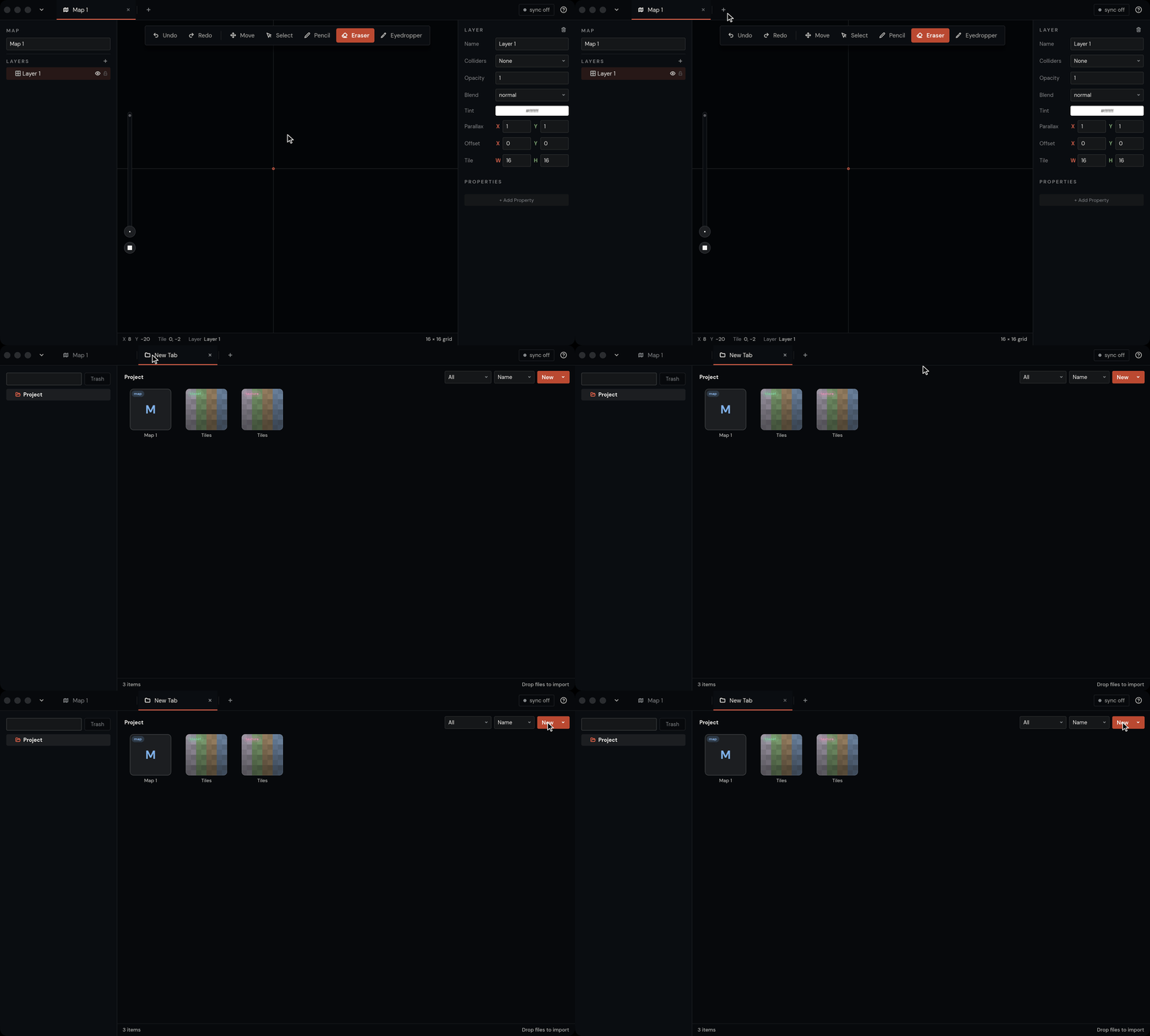
- Double-click an item to open it.
- New makes a folder, map, tileset, entity, texture or note.
- The ? button at the top right lists every keyboard shortcut.
Draw your tiles
Section titled “Draw your tiles”A tileset starts as a picture, called a texture. Make one with room for four 16×16 tiles.
- In the file browser, click New ▸ New Texture.
- Name it
Ground, keep the size at 32 × 32 and click Create. The texture opens in the same tab.
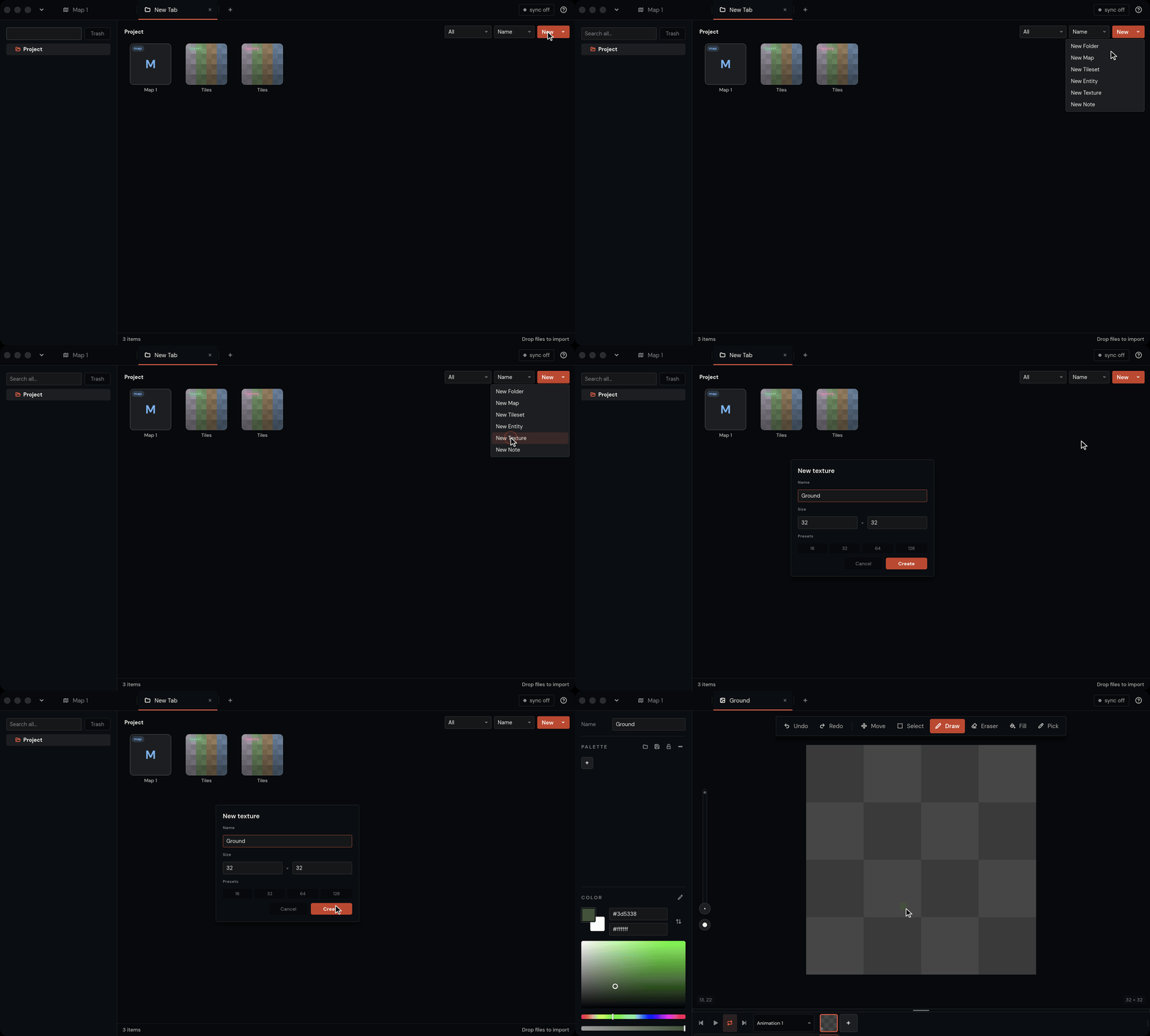
A new texture has an empty palette, so set colours in the Color panel at the bottom left. Click the colour field to open the picker, type a hex code into Hex and press Return.
- Set the colour to a brown, for example
#8b6240. - Click Fill (G), then click the canvas. The whole picture turns brown: four dirt tiles.
- Set the colour to a green, for example
#4f7a3a. - Click Draw (B) and draw a grass edge along the top of the top-left 16×16 square.
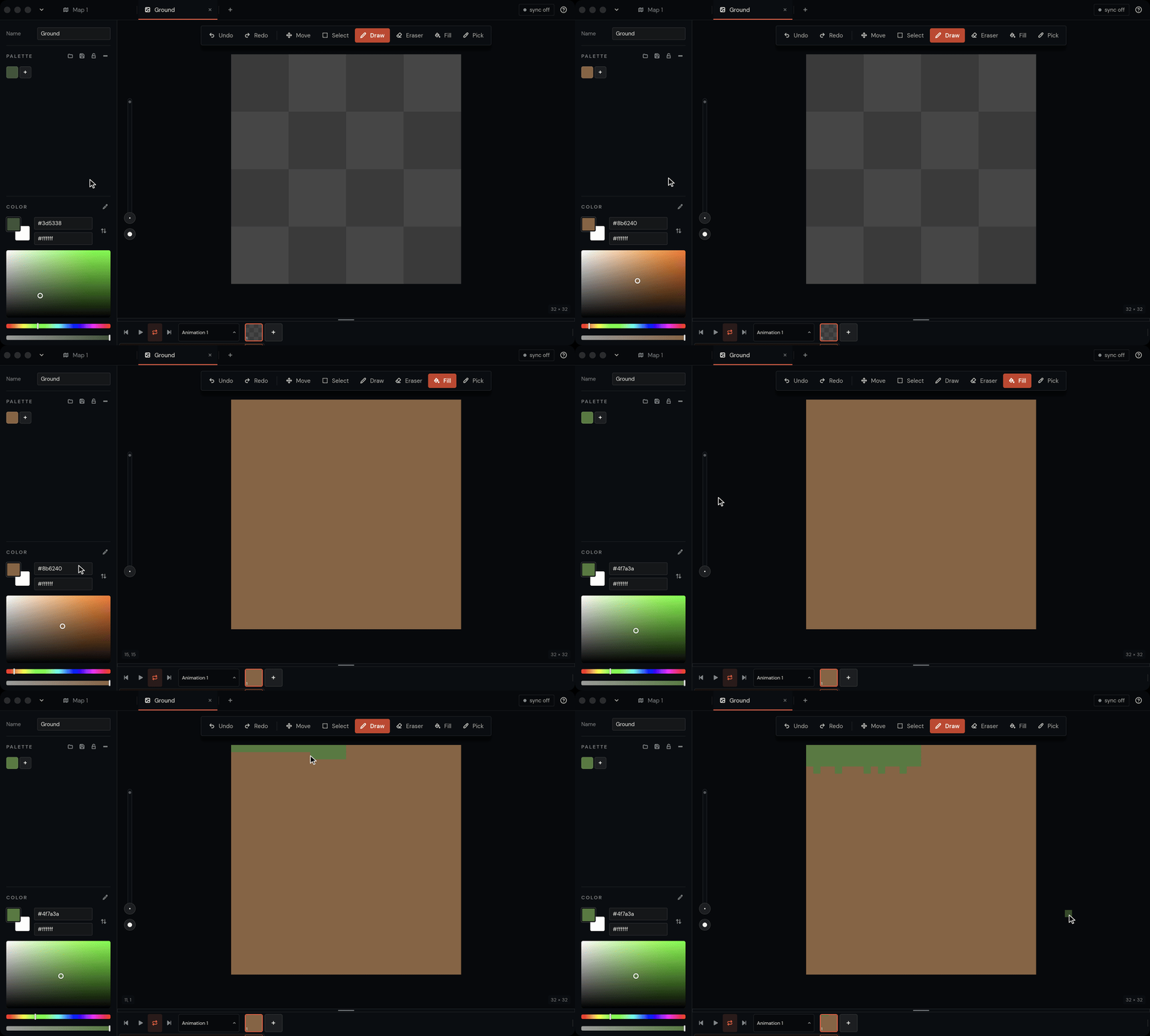
Clicking Draw or Fill also shows its options, such as a line, rectangle or ellipse for Draw. Eraser (E) removes pixels. Undo with Cmd+Z. Zoom with + and -, or hold Cmd and scroll. Scroll to move around.
Make a tileset
Section titled “Make a tileset”A tileset cuts a texture into tiles you can paint with.
- Click + to open the file browser, then New ▸ New Tileset.
- Under Choose a texture, click Ground. The preview shows how it will be cut: 32×32 into 2×2 tiles of 16×16.
- Click Create.
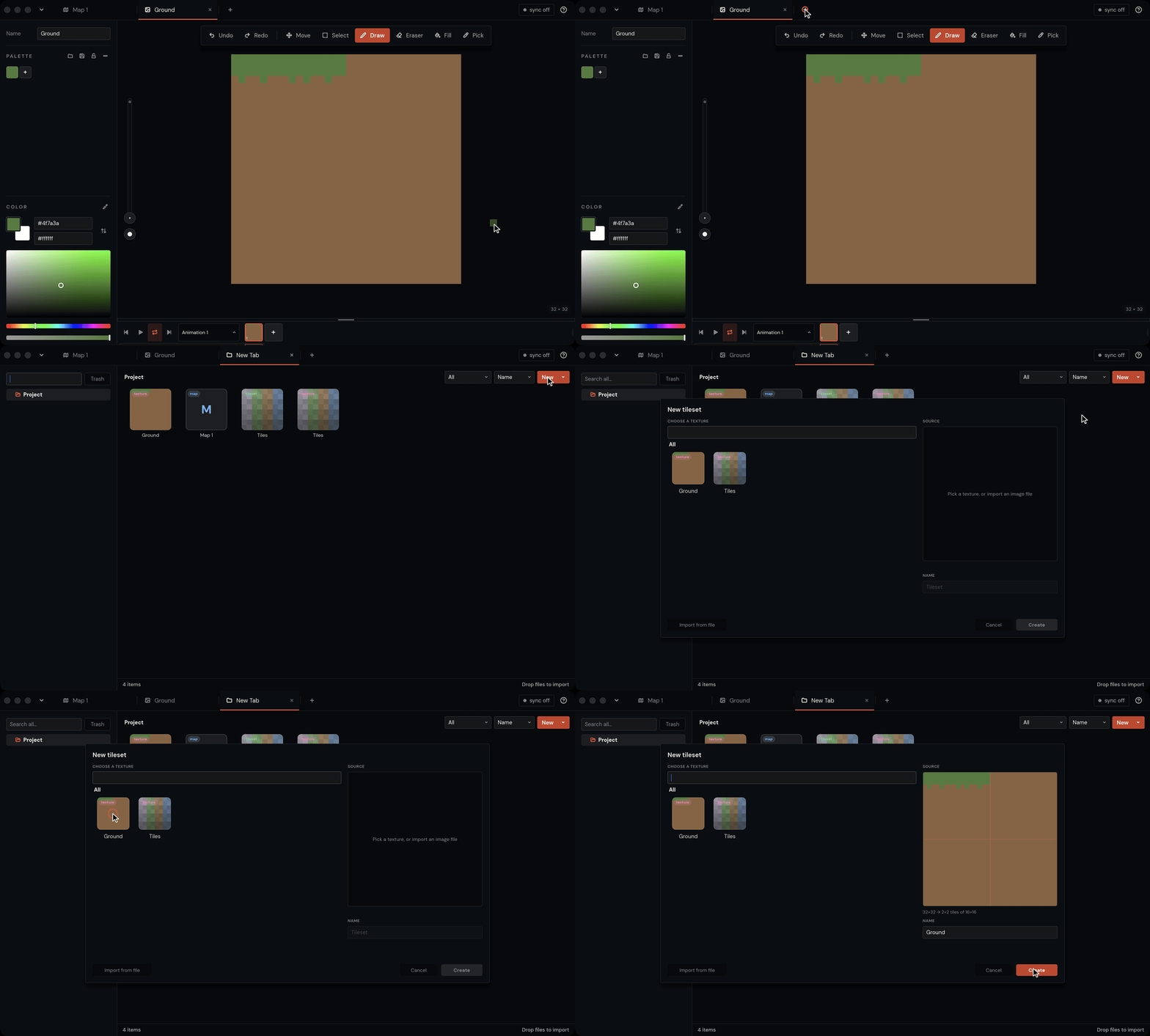
The tile size comes from the project’s first tileset, 16×16 here. To change it, open the tileset and set Tile Size under Tileset Properties.
The tileset stays linked to its texture: draw on Ground and the tiles update.
Paint the map
Section titled “Paint the map”- Click the Map 1 tab.
- Click Pencil (B) in the toolbar above the map.
- Point at the tile picker in the bottom-right corner of the map. It opens; click Back and choose Ground.
- Click the grass tile, then click or drag on the map to paint.
- Pick the plain dirt tile and paint the rows under the grass. The picker on the right works too.
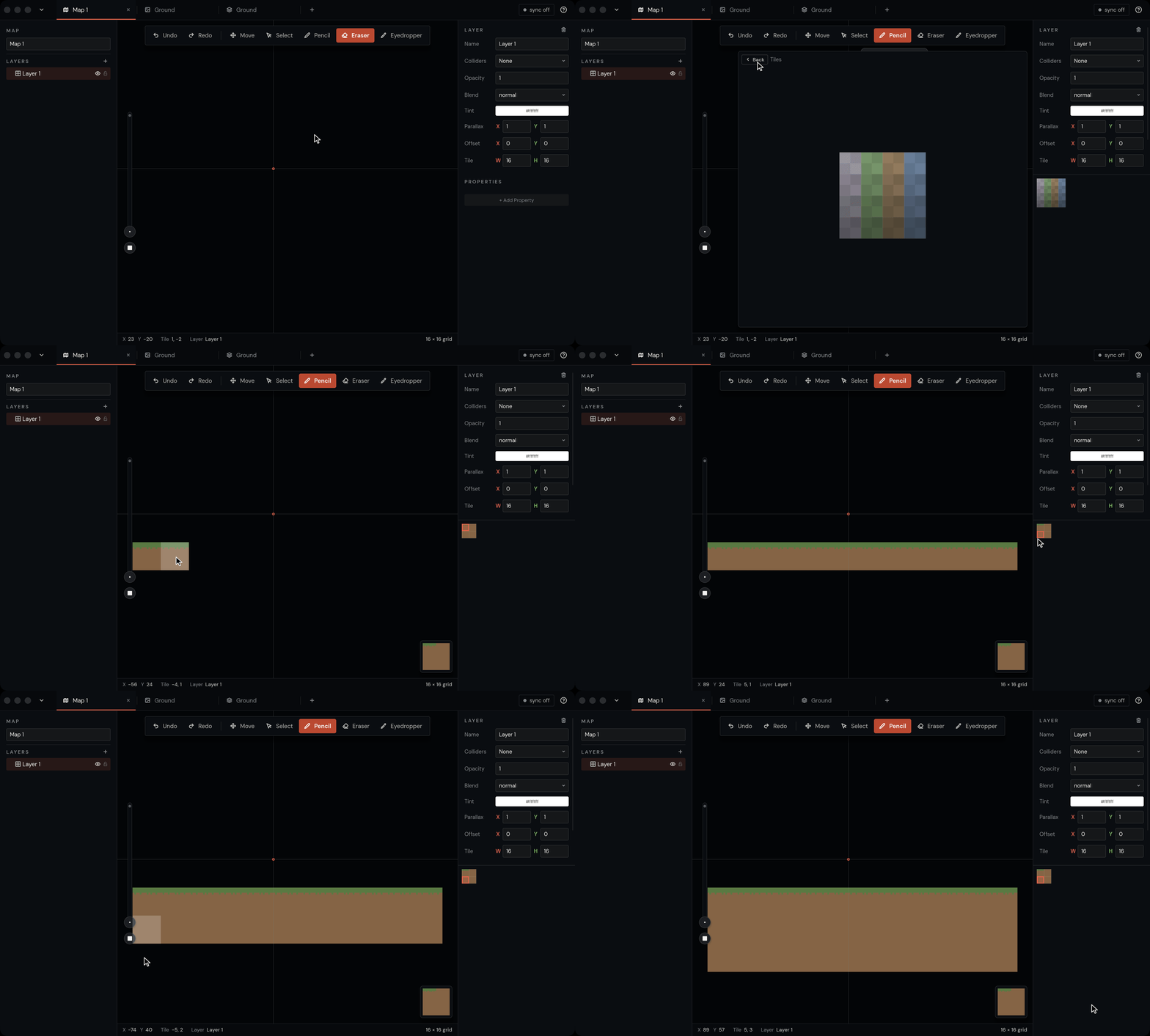
- Hold Shift and drag to fill a rectangle.
- Hold Shift and click to draw a line from the last cell you painted.
- Eraser (E) clears cells. Hold Alt and click a painted cell to pick up its tile.
- H shows or hides the grid. Home brings the view back to the middle.
A map has no fixed size, so you can paint anywhere.
Export a PNG
Section titled “Export a PNG”In the file browser, right-click Map 1 and choose Export as PNG.
For more options, open the map and choose File ▸ Export ▸ Export As. There you can also save each layer as its own image and scale the picture up to 8×.