
Add entities
Entities are the things in a level that aren’t ground: the player’s start, enemies, doors, pickups. You make an entity once, with its picture, its collision shape and its settings, then place it on maps as often as you like.
This tutorial continues from Make your first map and makes a coin.
Draw the coin
Section titled “Draw the coin”An entity’s picture is a texture like any other.
- In the file browser, click New ▸ New Texture. Name it
Coin, click the 16 preset and click Create. - Set the colour to a dark gold,
#b5832a. Click Draw, choose Ellipse and drag across the canvas to draw a ring. - Set the colour to a light gold,
#f2c14e. Click Fill, turn on Contiguous and click inside the ring.
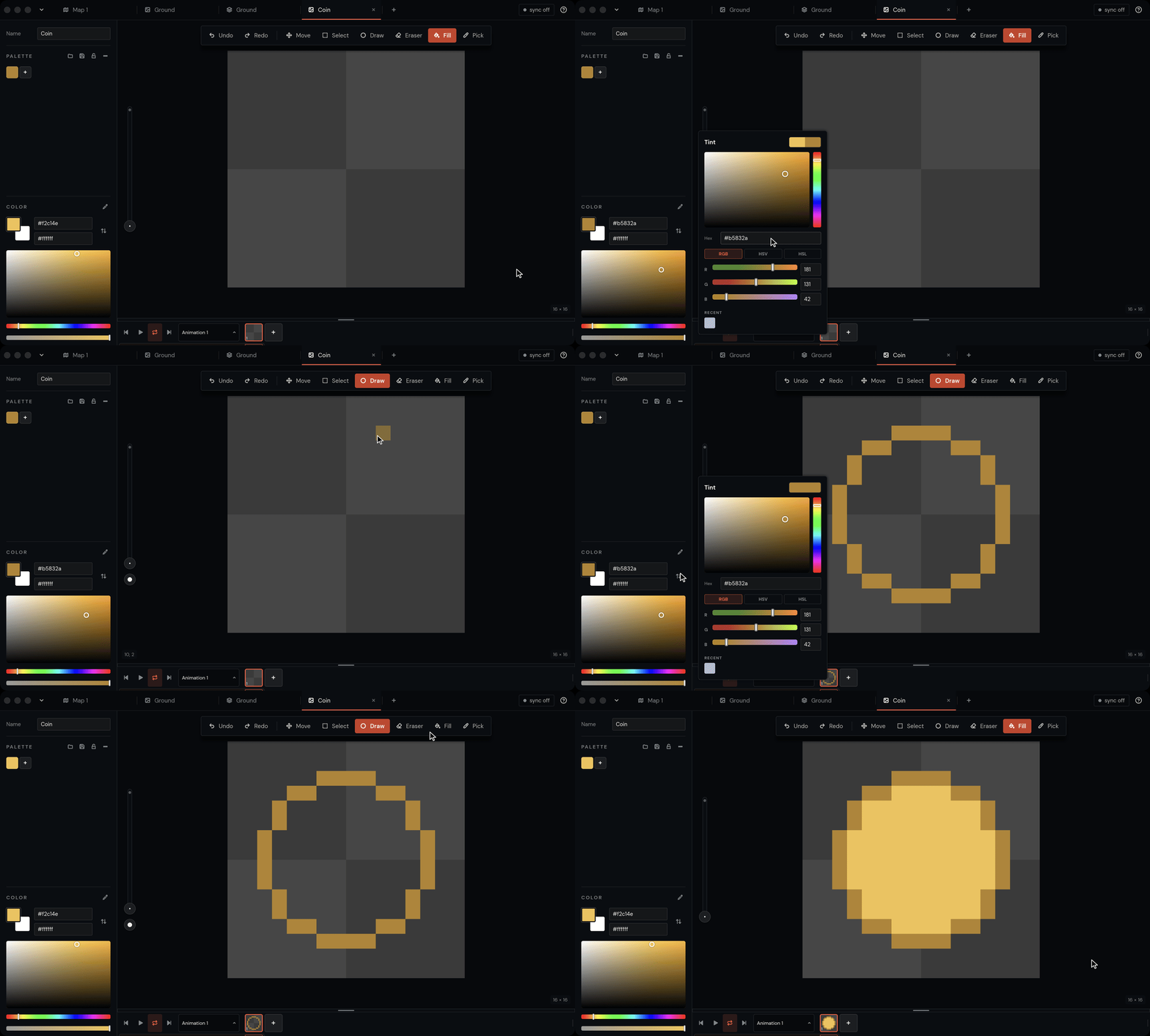
With Contiguous off, Fill changes every pixel of the colour you click, all over the picture. With it on, it only fills the area you click, so the corners of the coin stay clear.
Make the entity
Section titled “Make the entity”- In the file browser, click New ▸ New Entity. It opens straight away.
- Under Entity, set Name to
Coinand Type topickup. Your game can use the type to tell kinds of entity apart. - Next to Sprites, click +, then click the new sprite in the list.
- On the right, click the Sprite card. In Select Sprite, click Browse, choose the Coin texture and click Done.
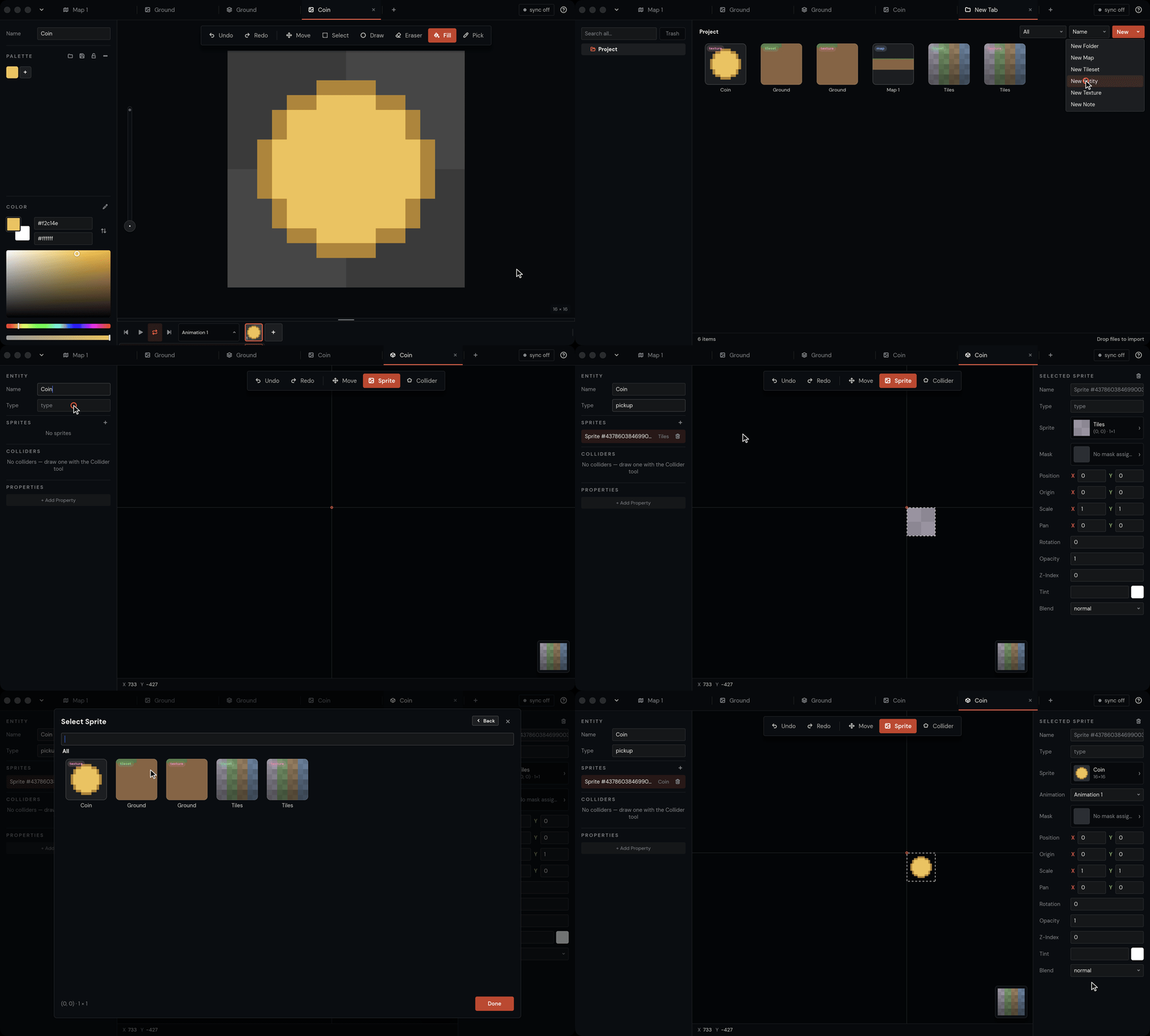
The cross in the preview is the entity’s origin: the point that goes where you click when you place it on a map. A sprite can come from a texture, like the coin, or from a tile in a tileset. If the texture has animations, choose one under Animation.
Add a collider
Section titled “Add a collider”A collider is the shape your game checks for collisions, such as the player touching the coin.
- With the sprite selected, set Origin to
0.5and0.5. Origin is a fraction of the sprite’s size, so this centres the coin on the cross. - Click Collider (3) and click around the coin to draw its outline.
- Press Return to close the shape.
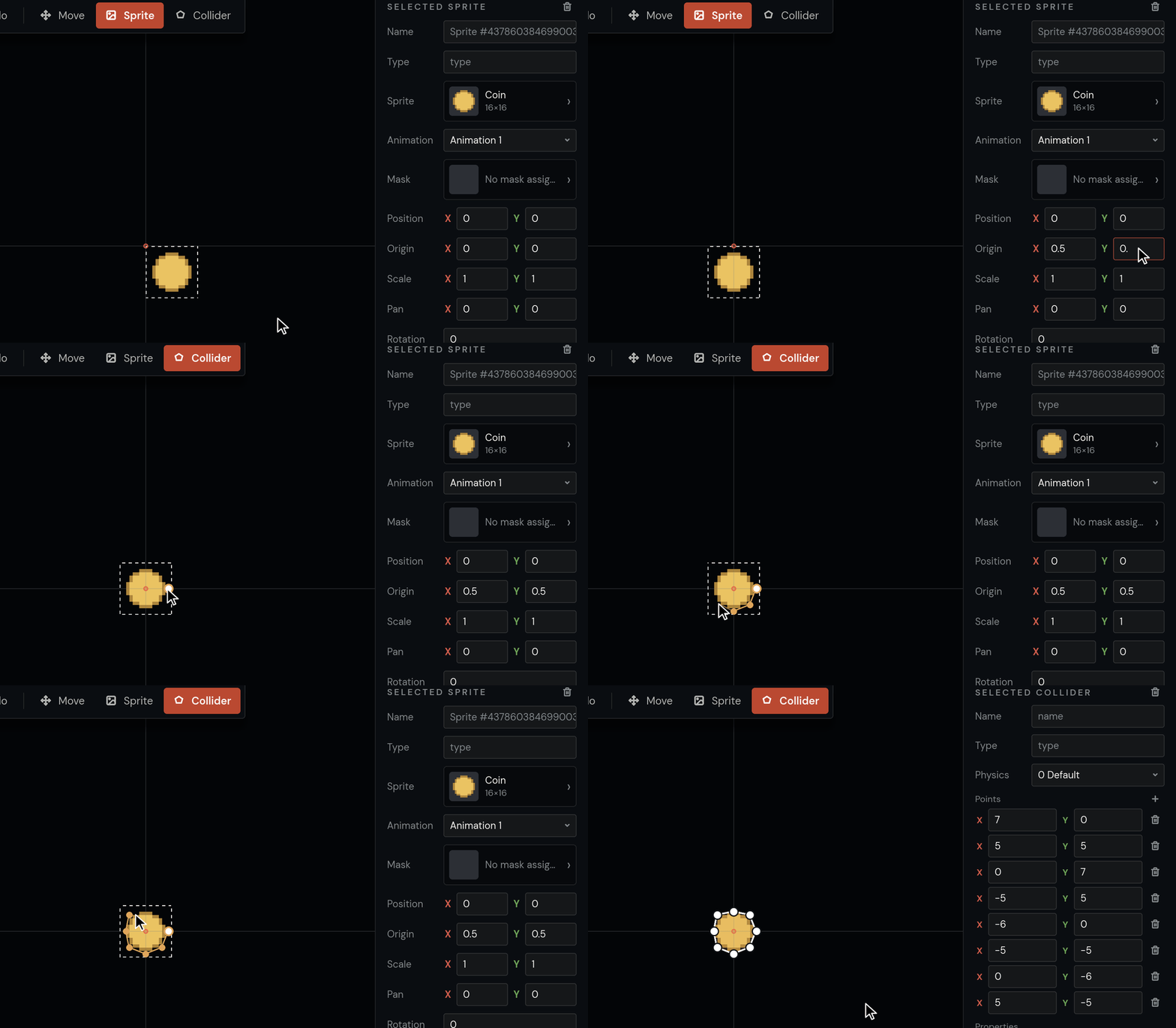
Click a collider to select it. On the right you can name it, give it a Type and choose its Physics layer. Backspace deletes the selected sprite or collider.
Add a property
Section titled “Add a property”Properties are settings your game reads, like how much a coin is worth. Each placed coin can override them.
- Under Properties, click + Add Property.
- Name it
value, set its type to integer and type1as its default.
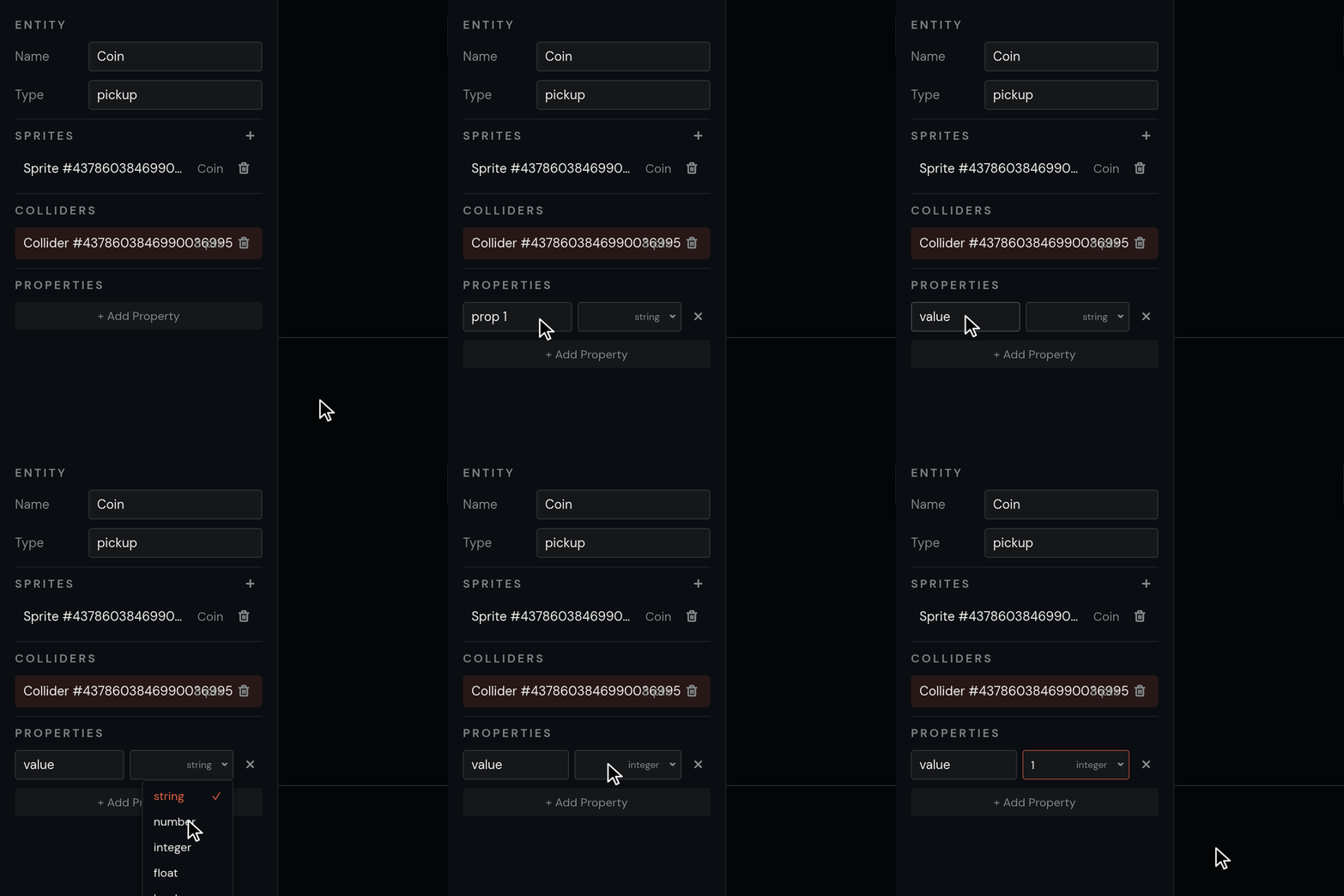
A property can be a string, number, integer, float, boolean, enum (a list of choices), color or ref (a link to another entity or a point on the map).
Place coins on the map
Section titled “Place coins on the map”- Click the Map 1 tab. Next to Layers, click + and choose Entity layer.
- Click Pencil (B). Point at the picker in the bottom-right corner of the map, click Back and choose Coin.
- Click on the map to place coins.
- To change one coin, click Select (S) and click it. Under Properties on the right, set value to
5.
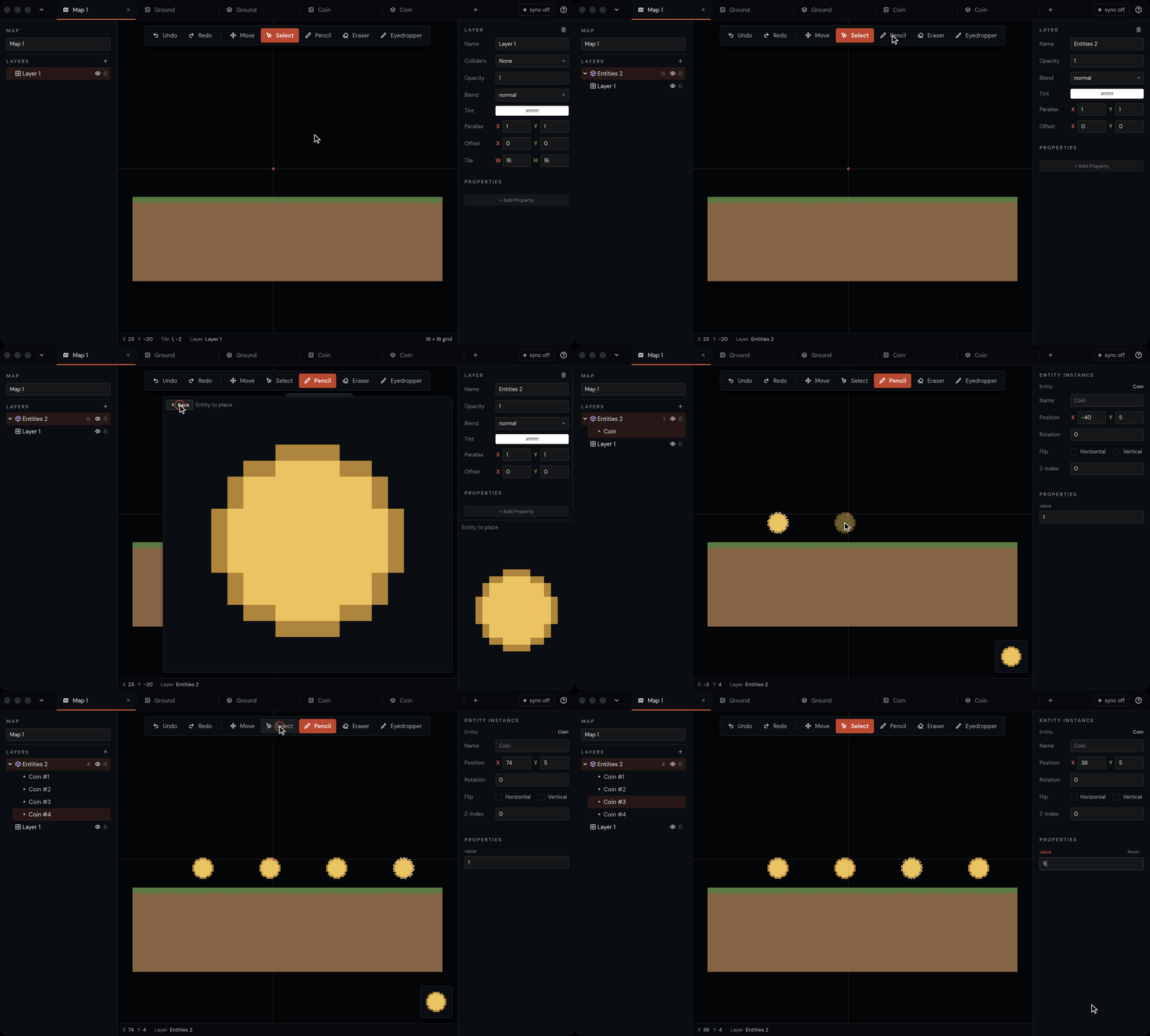
The changed value turns orange and gets a Reset button. Only that coin changes; the others keep the default from the entity.
- Drag a selected coin to move it. Backspace deletes the selection.
- X and Y flip the selected coins.
- Eraser (E) removes the coin you click.
- Coins land where you click, to the pixel. They don’t snap to the grid.